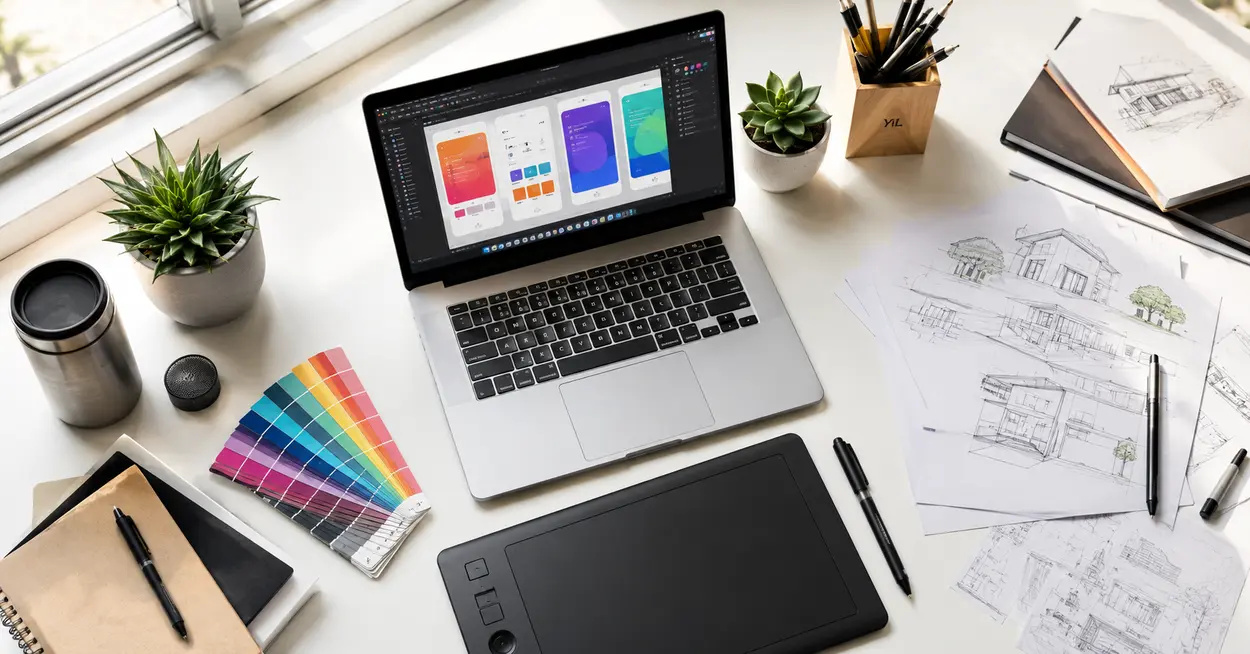
Let’s get one thing out of the way immediately: AI is not coming for your design job. What it is doing is fundamentally reshaping how design work gets done — and the designers who learn to work with AI tools are already delivering faster, more polished, and more profitable work than those who haven’t explored the space.
If you’ve spent any time in the past year watching the design industry, you’ve likely felt the shift. Clients now expect faster turnarounds. Creative briefs are getting more complex. Social media demands daily visual content. And the pressure to maintain brand consistency across dozens of platforms while keeping costs low has never been greater.
At the same time, design software has become increasingly expensive. A full Adobe Creative Cloud subscription can run over $600 a year — a steep ask for freelancers, design students, or small agencies just getting started. Even mid-size studios sometimes hesitate before adding another $50/month tool to the stack.
This is exactly where free AI-powered design tools have carved out a genuinely useful role. Not as a replacement for professional software, but as a smarter, faster, more accessible layer in the creative workflow.
According to McKinsey’s 2024 report on generative AI adoption, creative and design work is among the fields most actively being augmented by AI — with productivity gains of 20–40% reported in content-heavy roles. For designers, that kind of efficiency gain isn’t just nice to have; it’s competitive.
In this guide, you’ll find 15 of the best free AI tools designers are actually using in 2026 — tested across real workflows, reviewed honestly, and matched to specific design needs. Whether you’re a graphic designer, UI/UX specialist, branding freelancer, web designer, or design student, there’s something here that will save you time, spark new ideas, or help you deliver better work without breaking your budget.
Let’s get into it.
How AI Helps Designers (Without Replacing Creativity)
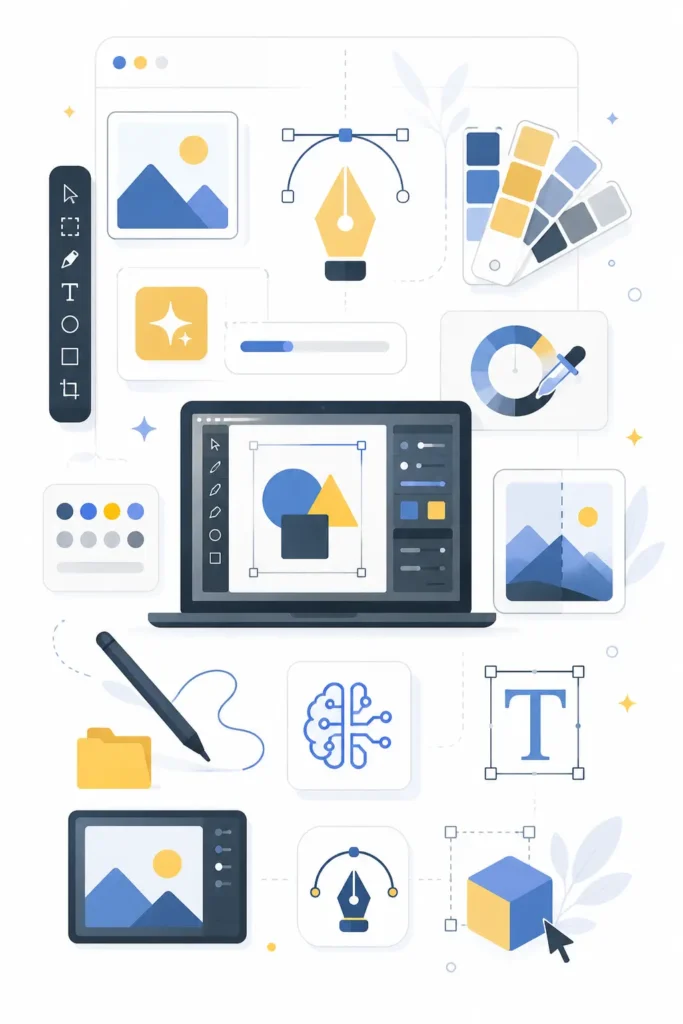
Before we dive into specific tools, it’s worth spending a moment addressing something that comes up in almost every design community discussion: the fear that AI will make designers redundant.
It won’t — at least not the good ones.
Here’s the thing: design is not just the act of moving shapes around a canvas. Design is empathy, strategy, communication, and taste. It’s understanding why a user hesitates on a checkout page, or why a brand’s color palette feels wrong for its audience. No AI tool in 2026 can replace that depth of judgment. What AI can do is handle the parts of the job that slow you down.
AI as a Creative Assistant
Think of AI as an incredibly fast, always-available creative intern who never complains about doing repetitive tasks. It can generate ten variations of a color palette while you’re still on your first cup of coffee. It can remove backgrounds from 50 product images in minutes. It can suggest layout directions for a brief you’ve been staring at for an hour.
Research from Stanford HAI consistently shows that AI tools amplify the output of skilled workers far more than they threaten it — the highest performers benefit most because they use AI to do more, not less.
Faster Ideation
One of the most underrated benefits of AI in design is the speed of ideation. When you can generate a dozen rough visual concepts in seconds, you stop overthinking the starting point and spend more energy refining what actually works. Tools like Leonardo AI and Ideogram have become “ideation accelerators” for many designers — not final-output machines, but powerful sparks that kick creative momentum into gear.
Design Automation
Tasks like resizing assets for different platforms, removing backgrounds, adjusting image lighting, and generating filler content for mockups are genuinely tedious. They’re important, but they don’t require creative thinking. AI handles these beautifully, freeing up hours every week that you can redirect toward work that actually requires a designer’s brain.
Content Generation at Scale
Social media designers in particular are feeling the relief. Generating platform-specific visual content at the volume modern brands require used to mean a team. Now, a single designer armed with the right AI tools can produce that volume independently — without sacrificing consistency.
Human Creativity Still Matters
None of this works without taste. AI-generated outputs are, by default, averaged. They’re trained on what’s been made before, which means they naturally produce work that feels familiar — sometimes to the point of being generic. The designer’s job, increasingly, is to be the creative director of AI output: knowing when to push further, when to discard, and how to integrate AI-generated elements into something that feels genuinely original.
That’s not less skilled work. In many ways, it’s more.
Best Free AI Tools for Designers in 2026
| Tool | Best For | Free Plan | Skill Level | Ideal User |
| Canva Magic Studio | Social media, marketing graphics | Yes (limited AI credits) | Beginner–Intermediate | Social media designers, marketers |
| Adobe Express | Quick design, brand assets | Yes (limited features) | Beginner | Freelancers, content creators |
| Figma AI | UI/UX design, wireframing | Yes (limited AI features) | Intermediate–Advanced | UI/UX designers, product teams |
| Microsoft Designer | Marketing creatives, social content | Yes (generous free tier) | Beginner | Non-designers, small business |
| Leonardo AI | Concept art, AI image generation | Yes (150 tokens/day) | Beginner–Intermediate | Graphic designers, concept artists |
| Ideogram | Typography-heavy visuals, posters | Yes (generous) | Beginner–Intermediate | Poster designers, branding |
| Remove.bg | Background removal | Yes (limited resolution) | Beginner | E-commerce, product designers |
| Clipdrop | Image editing, cleanup | Yes (limited) | Beginner–Intermediate | Photo editors, content designers |
| Khroma | Color palette generation | Free | Beginner–Advanced | All designers |
| Uizard | App wireframes, UI mockups | Yes (limited projects) | Beginner–Intermediate | App designers, product managers |
| Framer AI | Landing pages, portfolio sites | Yes (limited pages) | Intermediate | Web designers, freelancers |
| Looka | Logo and brand identity | Free (preview only) | Beginner | Startups, freelancers, students |
| Autodraw | Quick sketch recognition | Free | Beginner | Students, ideation workflows |
| Pixlr | Photo editing, compositing | Yes (limited features) | Beginner–Intermediate | Photo editors, content designers |
| Designs.ai | Marketing design, branding | Yes (trial) | Beginner | Marketers, small business owners |
15 Best Free AI Tools for Designers in 2026
Tool #1 – Canva Magic Studio
Best For: Social media graphics, marketing materials, presentations, content creation at scale
Canva has been a staple of the non-designer’s toolkit for years, but Magic Studio — its AI-powered feature suite — has made it genuinely interesting for professional designers too. Launched as a unified AI layer across Canva’s platform, Magic Studio brings together text-to-image generation, AI background removal, Magic Resize, Magic Write (AI copywriting), and the newer AI video generation features.
What Designers Will Like:
Magic Design is probably the most practically useful feature for working designers. Feed it a prompt or even an uploaded image, and it generates complete, customizable design layouts — not just random compositions, but ones that pull from Canva’s professionally designed template library. The results are surprisingly solid as starting points.
Magic Grab and Magic Edit make photo editing more approachable inside a design tool — you can select and move subjects within photos, change backgrounds, or extend images without jumping to a separate editing app.
The Brand Kit integration is worth highlighting for freelancers and agencies: you can lock brand colors, fonts, and logos at the account level, and Canva’s AI will respect those when generating suggestions.
Free Plan Limitations:
The free plan gives you access to some Magic Studio features, but AI generation credits are limited. You’ll get a few hundred credits per month, which goes faster than you’d expect if you’re using text-to-image generation heavily. The free tier also restricts access to premium templates and some Brand Kit features. For professional use, you’ll likely hit the ceiling.
Best Use Cases:
- Social media content batches for clients or personal brand
- Presentation design
- Marketing collateral for small businesses
- Quick mockups and concept visuals
Real Workflow Note: Many freelancers use Canva Magic Studio as their client-facing tool — where the client can log in, make small edits, and feel ownership over the work — while doing the heavier design work in Figma or Illustrator.
Canva’s official Magic Studio page has detailed breakdowns of each AI feature.
Tool #2 – Adobe Express
Best For: Quick design projects, social content, brand asset creation, professional-looking outputs with minimal effort
Adobe Express (formerly Adobe Spark) has evolved significantly since Adobe integrated its Firefly generative AI model into the platform. What was once a simple template-based design tool is now one of the more capable free AI design platforms available — particularly for designers already in the Adobe ecosystem.
What Designers Will Like:
The Firefly integration is the headline feature. Adobe’s text-to-image generation produces cleaner, more commercially safe outputs than many competitors because Firefly is trained on licensed stock imagery — reducing the copyright ambiguity that plagues some other AI image tools. Adobe has been transparent about this training approach, which matters for client work.
The Generative Fill feature — borrowed from Photoshop — is genuinely powerful in Express. You can extend image canvases, remove unwanted elements, or swap backgrounds in seconds.
Express also integrates with Adobe’s brand management tools, so if your organization already uses Adobe’s Creative Cloud for brand asset management, Express can pull logos, colors, and approved fonts automatically.
Free Plan Limitations:
The free plan limits generative AI credits significantly. You’ll also find that some of the more advanced editing features, high-resolution exports, and premium templates require a paid plan. Express free is excellent for occasional use or light workloads, but regular professional use will push you toward a paid tier.
Best Use Cases:
- Quick-turn social media graphics
- Email header images
- Presentations with brand-consistent visuals
- Rapid prototyping of marketing materials
Tool #3 – Figma AI
Best For: UI/UX design, wireframing, prototyping, design systems, collaborative design
Figma has been the industry-standard tool for UI/UX design for several years, and its AI capabilities — integrated directly into the core design environment in 2024 and expanded through 2025–2026 — make it even more powerful for digital product designers.
What Designers Will Like:
Figma AI’s most-used feature is arguably the AI-powered auto-layout suggestions and the ability to generate UI components from text prompts directly inside the canvas. You can type “create a login form with email, password, and submit button” and get a structured, editable component that follows your existing design system tokens.
The AI-powered prototyping features now allow basic user flow generation from a written brief — which is a significant time saver in early-stage product design. Instead of manually connecting screens, you can describe a flow and get a navigable prototype in minutes.
For design systems work, Figma AI can detect inconsistencies in your component library, suggest auto-layout fixes, and help maintain spacing and padding consistency across files.
Free Plan Limitations:
Figma’s free plan has always been generous for individual designers and small teams — you get up to 3 projects and unlimited personal files. The AI features within the free tier are somewhat limited in frequency but available for exploration. Teams doing heavy AI-assisted design work may find the free plan insufficient for collaborative AI features.
Best Use Cases:
- Product design and app wireframing
- Design system building and maintenance
- Rapid UI prototyping
- Collaborative client review workflows
Figma’s AI feature documentation is the best starting point for learning what’s available on your plan.
Tool #4 – Microsoft Designer
Best For: Marketing creatives, social media content, presentations, branding materials for non-technical users
Microsoft Designer, powered by DALL-E and integrated with Microsoft Copilot’s broader ecosystem, has matured significantly in 2025–2026. It’s one of the most generous free AI design tools in terms of image generation credits — particularly for users with a Microsoft account.
What Designers Will Like:
The text-to-image generation is fast and produces reasonably high-quality outputs, particularly for marketing-style visuals and professional photography composites. The layouts it generates for social media are well-structured and edit-friendly.
Microsoft Designer’s biggest advantage is its integration with the Microsoft 365 ecosystem. If your clients are working in PowerPoint, Word, or Teams, Designer can generate assets that plug directly into those workflows — a practical win for enterprise and corporate design work.
Free Plan Limitations:
Free access is generous with image generation credits (Microsoft has been using Designer as an engagement driver for its AI ecosystem), but the editing tools are more limited compared to Canva or Adobe Express. It works best as an image generation and quick-layout tool rather than a full design suite.
Best Use Cases:
- Social media graphics
- Presentation visuals
- Marketing thumbnail generation
- Corporate content creation
Tool #5 – Leonardo AI
Best For: Concept art, illustration, design inspiration, game asset generation, marketing imagery
Leonardo AI is one of the more sophisticated AI image generation platforms, and its free plan is genuinely competitive — offering 150 tokens per day, which allows a meaningful daily generation workflow for designers using it seriously.
What Designers Will Like:
Leonardo’s Model Zoo is its standout feature — a collection of fine-tuned AI models trained on specific visual styles (photorealism, anime, concept art, architectural visualization, product photography, etc.). This allows designers to dial in an aesthetic much more precisely than general-purpose image generators.
The Canvas feature functions like a basic image editing tool where you can do inpainting (editing specific areas of an image), upscaling, and compositing — all without leaving the platform.
For product designers and branding specialists, Leonardo’s image-to-image feature is powerful: feed it a rough sketch or mood board, and it generates polished visual interpretations of the direction you’re exploring.
Free Plan Limitations:
150 tokens per day sounds like a lot until you start generating multiple variations — each image typically costs 2–8 tokens depending on resolution and model. Heavy daily use will hit limits. Some advanced models and features are locked to paid plans.
Best Use Cases:
- Visual concept generation for client briefs
- Illustration and artwork creation
- Marketing imagery and campaign concepts
- Game and interactive media asset generation
Leonardo AI’s official platform includes detailed documentation on their model library.
Tool #6 – Ideogram
Best For: Typography-heavy visuals, poster design, branding concepts, text-in-image generation
Ideogram emerged as one of the most impressive AI image generators for a very specific, historically difficult problem: generating images that include legible, stylistically consistent text. This has been a notorious weakness of AI image generation tools, and Ideogram addresses it better than almost any other free option in 2026.
What Designers Will Like:
For poster designers, event graphics creators, and anyone who needs to generate visuals where text is integrated into the design (not just overlaid after the fact), Ideogram is nearly unmatched in the free tier. The results are consistently impressive — readable headlines, stylistically integrated typography, and good compositional sense.
The magic prompt feature — which automatically enhances your text prompts to produce better outputs — is useful for designers who are still developing their prompting skills.
Free Plan Limitations:
The free plan includes a reasonable number of image generations per day, and the quality-to-credit ratio is among the best available. Limitations kick in around batch generation and high-resolution exports.
Best Use Cases:
- Poster and event graphics
- Social media visuals with integrated text
- Brand concept visualization
- Thumbnail design for content creators
Tool #7 – Remove.bg
Best For: Background removal for product images, marketing graphics, portrait photos, quick edits
Remove.bg is one of those rare single-purpose tools that just works — consistently, quickly, and better than manually cutting subjects out of photos in Photoshop. Powered by AI-trained segmentation models, it handles hair, fur, transparent objects, and complex edge cases remarkably well.
What Designers Will Like:
Speed and accuracy are the headline benefits. What takes 10–30 minutes of careful masking in Photoshop takes Remove.bg about 5 seconds. For product photographers, e-commerce designers, and anyone who regularly handles client photography, this is a significant time saver.
The API access (available on paid plans but testable free) makes it valuable for teams building automated design production workflows.
Free Plan Limitations:
Free users can remove backgrounds from images, but downloads are limited to lower-resolution outputs (around 0.25 megapixels on the free tier). For professional print work or large-format use, you’ll need a paid plan or credits. The limitation is real, but for web and social media use, it’s often workable.
Best Use Cases:
- E-commerce product image preparation
- Social media graphics with subject isolation
- Marketing collateral preparation
- Quick client photo edits
Remove.bg processes images directly in the browser with no software installation required.
Tool #8 – Clipdrop
Best For: Image enhancement, background cleanup, object removal, relighting, creative compositing
Clipdrop is one of those tools that professional photo editors and graphic designers genuinely reference as part of their regular workflow. Acquired by Stability AI and now offering a robust free tier, Clipdrop bundles several AI-powered image manipulation tools into one platform.
What Designers Will Like:
The Relight tool is genuinely remarkable — it lets you change the lighting direction and mood of a photograph after the fact, turning a flat studio shot into something with dramatic directional light or a warm golden-hour feel. For marketing designers who work with client-provided photography that’s often mediocre, this is a significant creative advantage.
Cleanup (object removal) and Remove Background work cleanly. The Uncrop feature — which extends images beyond their original canvas boundaries — is useful for adapting photography to different aspect ratios.
Free Plan Limitations:
Free usage is available but limited by daily generation credits. Heavy users will find they exhaust the free tier relatively quickly. Some tools have resolution caps on free outputs.
Best Use Cases:
- Marketing photography enhancement
- Product image cleanup
- Social media creative production
- Magazine and editorial design mockups
Tool #9 – Khroma
Best For: AI-powered color palette generation, brand color discovery, UI color system development
Khroma approaches the challenge of color selection differently from most tools. Rather than offering a generic palette generator, Khroma trains a personal AI model on your color preferences — you select colors you like during an onboarding process, and it builds a personalized color discovery engine from that data.
What Designers Will Like:
The results are genuinely personalized in a way that feels meaningfully different from generic palette tools. Khroma learns your aesthetic sensibilities and consistently surfaces color combinations that align with your taste — which is valuable when you’re stuck in the early stages of a branding project or need to break out of habitual color choices.
The generated palettes are presented in realistic UI, typography, and gradient contexts — so you’re seeing the colors as they’d actually appear in design work, not just as abstract swatches.
Free Plan:
Khroma is entirely free. There’s no paid tier — it’s a passion project from a designer, and it shows in the quality and thoughtfulness of the tool.
Best Use Cases:
- Brand identity color exploration
- UI design system color development
- Breaking out of habitual color choices
- Client color palette presentations
Khroma is available directly in the browser.
Tool #10 – Uizard
Best For: App wireframing, UI mockup generation, rapid prototyping, design handoff
Uizard is designed specifically for early-stage digital product design — the phase between a concept and a polished Figma prototype. Its AI features allow designers and even non-designers to generate functional UI mockups from text descriptions, screenshots of existing apps, or rough sketches.
What Designers Will Like:
The screenshot-to-design feature is genuinely clever: photograph or screenshot an app you admire, and Uizard will generate an editable UI mockup inspired by that layout. It’s useful for rapid competitive analysis and for spinning up design directions quickly.
The text-to-UI generation — where you describe a screen in plain language and get a wireframe — is a strong fit for the “blank canvas” problem that many designers face at the start of a project.
Free Plan Limitations:
The free plan limits the number of projects and AI-assisted generations. For most design students and freelancers doing exploratory work, the free tier is useful. Agencies and teams running parallel projects will likely need a paid plan.
Best Use Cases:
- App MVP wireframing
- Client presentation mockups
- Design sprint facilitation
- Product manager–designer collaboration
Tool #11 – Framer AI
Best For: Landing page design, portfolio websites, web design with live publishing
Framer has long been a favorite among web designers for its blend of design tool UX and live publishing capability. Its AI features — introduced in 2023 and expanded significantly since — allow designers to generate entire landing pages from text prompts, edit content with AI, and produce responsive web designs without touching code.
What Designers Will Like:
The text-to-website generation is Framer’s headline AI feature. You describe the website you want, and Framer generates a multi-section, responsive, design-system-consistent site. The outputs are good enough to be real starting points — not just basic templates.
For freelancers, the ability to go from client brief to a working, published website prototype in under an hour is a meaningful competitive advantage.
Free Plan Limitations:
The free plan supports publishing a Framer subdomain website, but custom domain publishing requires a paid plan. The AI generation credits on the free tier are limited, and advanced interactions and CMS features are paywalled.
Best Use Cases:
- Portfolio website design and publishing
- Landing page design for client campaigns
- Startup marketing sites
- Freelance web design workflows
Tool #12 – Looka
Best For: Logo design, brand identity concepts, startup branding, freelance brand presentations
Looka is an AI-powered brand identity platform that allows designers — and non-designers — to generate logo concepts and complete brand kits based on inputs about a company’s industry, style preferences, and aesthetic direction.
What Designers Will Like:
For branding designers, Looka is most useful as a concept generation and client presentation tool rather than a final-output tool. The AI generates dozens of logo directions quickly, which is valuable when you’re trying to scope a client’s taste before investing hours in custom work.
The brand kit generation — which includes color palettes, font pairings, and business card/social media mockups — is genuinely well-executed and can serve as a polished deliverable for startups with limited budgets.
Free Plan Limitations:
Looka allows you to generate and preview logos for free, but downloading high-resolution files requires purchasing a plan. This is a legitimate limitation — it’s a freemium model where the value is demonstrated before purchase. Designers often use Looka for concept generation and then recreate their preferred direction in a professional vector tool.
Best Use Cases:
- Logo concepting and client presentations
- Brand identity exploration
- Startup and small business branding
- Freelance brand design deliverables
Tool #13 – Autodraw
Best For: Quick sketch recognition, concept visualization, ideation support, design education
Autodraw is Google’s AI-powered drawing tool that recognizes rough sketches and suggests polished versions of what you’re trying to draw. It’s lighter than most tools on this list, but it serves a specific and genuine design need: the ability to quickly externalize ideas without illustration skill.
What Designers Will Like:
For wireframing, storyboarding, or quick concept sketching during meetings or brainstorming sessions, Autodraw removes the friction of “I can’t draw” that blocks many designers from sketching quickly. The icon and illustration library it pulls from is clean and versatile.
Free Plan:
Completely free, no account required.
Best Use Cases:
- Design workshop facilitation
- Quick concept sketching
- UX storyboarding
- Design education and teaching
Autodraw runs entirely in the browser.
Tool #14 – Pixlr
Best For: Photo editing, image compositing, quick visual content creation, background generation
Pixlr has been around for over a decade as a browser-based Photoshop alternative, and its AI layer — expanded significantly in 2024–2025 — makes it one of the more complete free photo editing tools available.
What Designers Will Like:
Pixlr’s AI background generation (add custom backgrounds to subject-isolated photos), AI object removal, and AI-powered batch editing are the standout features for working designers. The interface is familiar to Photoshop users, which reduces the learning curve.
The Pixlr Suite includes both Pixlr E (advanced editing) and Pixlr X (simpler layout tool), giving designers flexibility based on the complexity of their task.
Free Plan Limitations:
The free plan is ad-supported and has some feature limitations, but it’s usable for regular design work. High-resolution exports and advanced AI features have usage caps on free accounts.
Best Use Cases:
- Photo editing for marketing and social content
- Image compositing and manipulation
- Background generation for product photos
- Quick client photo corrections
Pixlr’s web app works on any modern browser without installation.
Tool #15 – Designs.ai
Best For: Marketing design, branding assets, social media content, content production at scale
Designs.ai is an all-in-one AI creative platform that bundles logo design, video creation, image generation, and marketing copy tools into a single subscription — with a free trial tier that gives designers meaningful access.
What Designers Will Like:
The breadth of Designs.ai’s toolkit is its main selling point. Rather than coordinating five separate tools for logo, social graphics, video thumbnails, and marketing copy, you can work within a single platform. The quality of individual outputs is solid without being exceptional — it occupies the sweet spot of “good enough for marketing materials, fast to produce.”
The brandmark generator and social media template system are particularly well-developed.
Free Plan Limitations:
Designs.ai offers a free trial rather than a permanent free tier, which is a limitation worth noting honestly. After the trial, a subscription is required. The value proposition depends heavily on whether your workload justifies the monthly cost.
Best Use Cases:
- Marketing agency content production
- Startup brand asset development
- Social media content batching
- Small business marketing materials
Best AI Tools by Design Specialty
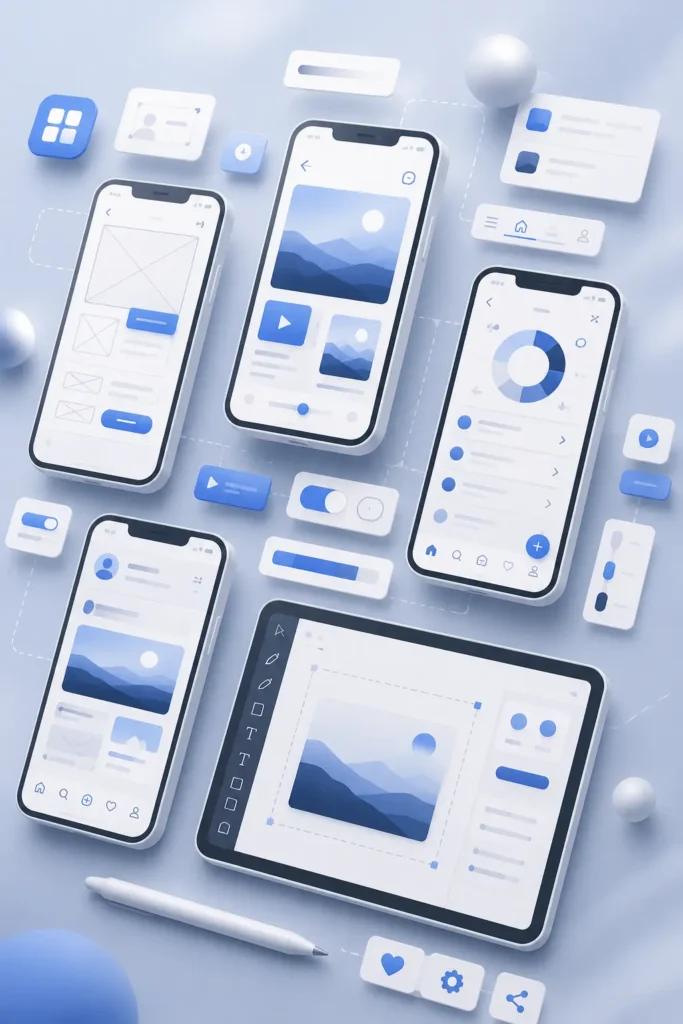
Not all designers have the same needs, and choosing the right tool matters more than having access to all of them. Here’s a practical breakdown by specialty.
Best for Graphic Designers
Top Picks: Leonardo AI, Ideogram, Canva Magic Studio, Clipdrop, Remove.bg
Graphic designers working in print, editorial, and marketing will get the most value from Leonardo AI’s high-quality image generation and Ideogram’s text-in-image capabilities. Canva Magic Studio handles the volume work efficiently, while Clipdrop and Remove.bg take care of photo editing and preparation tasks.
Best for UI/UX Designers
Top Picks: Figma AI, Uizard, Khroma, Framer AI
The UI/UX stack centers on Figma AI for production design work and Uizard for rapid wireframing and concepting. Khroma’s color system is a natural complement to design system work, and Framer AI bridges the gap between design and live web publishing.
Best for Web Designers
Top Picks: Framer AI, Figma AI, Canva Magic Studio, Leonardo AI
Web designers will find Framer AI particularly powerful for its ability to move from design to published site efficiently. Figma AI handles the design system work, while Leonardo AI fills the need for custom imagery that doesn’t require a stock photo subscription.
Best for Freelancers
Top Picks: Canva Magic Studio, Adobe Express, Remove.bg, Looka, Figma AI
Freelancers need tools that cover a wide range of client needs efficiently. This stack covers social media, photo editing, branding, and UI work — and all have viable free tiers for managing costs.
Best for Branding Designers
Top Picks: Looka, Khroma, Ideogram, Leonardo AI, Adobe Express
Branding work is about concept development and client communication as much as execution. Looka and Ideogram both excel at generating presentable brand concepts quickly. Khroma’s color tool is unmatched for palette development, and Leonardo AI produces strong brand visual concepts.
Best for Design Students
Top Picks: Figma AI, Canva Magic Studio, Autodraw, Pixlr, Khroma
Students need tools that teach as they assist. Figma AI is essential to learn since it’s the industry standard. Canva Magic Studio provides practical project experience. Autodraw, Pixlr, and Khroma round out a solid learning toolkit that costs nothing.
Free vs Paid AI Design Tools: An Honest Assessment

One of the most common questions designers ask before adopting an AI tool is: “Is the free version actually useful, or is it just a stripped-down demo?”
The honest answer varies by tool and by how you intend to use it.
What Free Plans Usually Offer
Most free tiers in AI design tools follow a similar pattern:
- Core functionality is available but with usage caps (generation credits, export limits, or project limits)
- Standard resolution outputs are available; high-res requires payment
- Basic features are unlocked; advanced AI features are paywalled
- Branding or watermarks may appear on exports (common in video tools, less so in image tools)
- Cloud storage is limited
For casual or exploratory use, these free plans are genuinely valuable. For designers building a professional workflow, the limitations become friction over time.
Common Limitations That Matter
- Generation credit caps — tools like Leonardo AI (150 tokens/day) and Ideogram constrain heavy users
- Export resolution — Remove.bg’s free 0.25MP outputs are too low for print or large-format use
- Collaboration features — most free plans limit team sharing, which matters for agencies
- Commercial licensing — some free AI image generations have unclear commercial use rights; verify before using in client work
When Paid Plans Make Sense
Upgrading is worth it when:
- You’re billing clients for AI-assisted work (the time savings easily offset the cost)
- You need high-resolution outputs for print or advertising
- You’re managing a team and need collaborative features
- You’re generating images or designs at volume (daily social content, batch product images)
- You need commercial-use certainty for generated assets
Adobe’s Firefly pricing and Canva Pro pricing are among the more transparent about what each tier includes.
Who Can Stay on Free Plans
Design students exploring workflows, freelancers with occasional design needs, in-house designers at small organizations, and anyone using AI tools primarily for concept generation and ideation can often maintain productive workflows on free tiers. The key is matching tool expectations to actual use patterns.
How Designers Can Build an AI-Powered Workflow
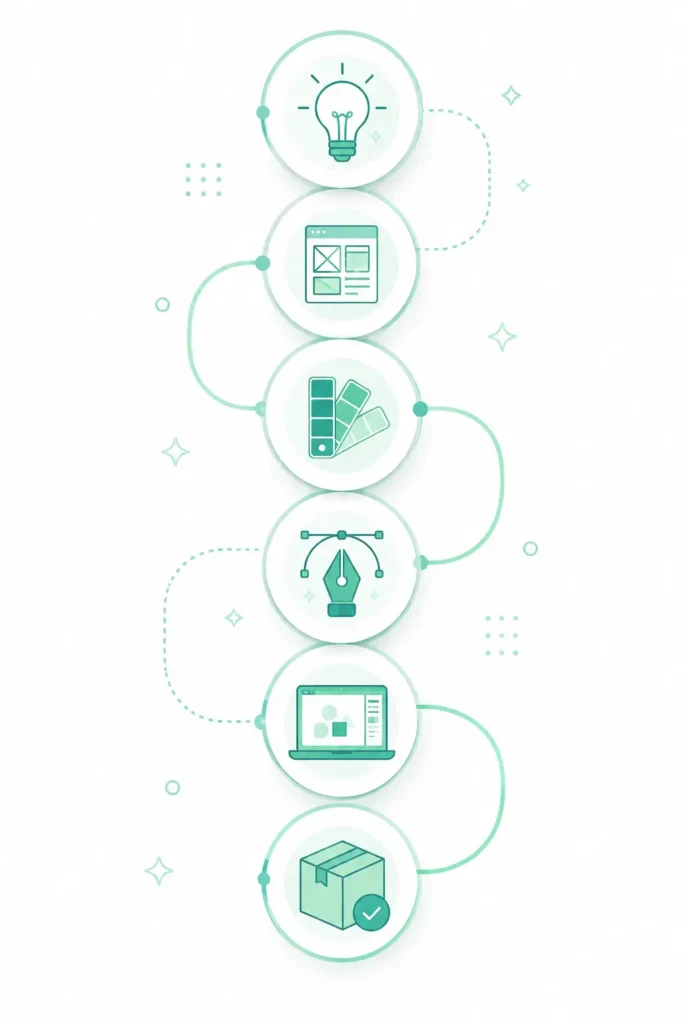
Having a list of AI tools is less useful than knowing how to integrate them into a coherent production workflow. Here’s a practical example of how a freelance graphic designer might structure an AI-augmented workflow from brief to delivery:
Step 1: Idea Generation → Leonardo AI
When a brief lands in your inbox, before you open any design software, spend 15–20 minutes in Leonardo AI generating visual directions. Use rough text prompts to explore mood, composition, and style. You’re not looking for final outputs — you’re looking for creative sparks. Save the directions that resonate, discard the rest.
Why this works: It breaks the blank-canvas paralysis that slows most design projects and gives you a visual vocabulary to bring to the first client conversation.
Step 2: Color Development → Khroma
With a visual direction established, move into Khroma to develop the color system. Your previously trained Khroma profile will surface palettes that align with your aesthetic sensibilities. Pull two or three directions to present to the client.
Why this works: Color decisions made early constrain all subsequent creative work — it’s worth spending dedicated time here rather than treating color as an afterthought.
Step 3: Wireframing (if applicable) → Figma AI or Uizard
For digital product work, move into Figma AI to build wireframes based on your conceptual direction. Uizard works well if you want to generate initial screen layouts from text before refining in Figma.
Why this works: Separating wireframing from visual design keeps the structural logic of the design independent from its aesthetic execution.
Step 4: Branding Concept Development → Looka + Ideogram
For branding projects, use Looka to generate initial logo directions and Ideogram to produce branded visual assets that include integrated typography. These become your concept presentation materials.
Why this works: Clients respond better to tangible visual concepts than wireframes or mood boards alone. AI-generated concepts get you to presentation-ready materials faster.
Step 5: Graphics and Layouts → Canva Magic Studio
With a visual direction and color system established, use Canva Magic Studio for production work — particularly for social media, presentations, and marketing materials that require volume output.
Why this works: Canva’s AI respects your brand system and produces consistent outputs efficiently.
Step 6: Image Editing → Clipdrop
For any client-provided photography that needs enhancement, cleanup, or relighting, run it through Clipdrop’s tools before incorporating it into designs.
Why this works: Elevating mediocre photography through AI editing is often more impactful than spending the same time on custom illustration.
Step 7: Final Delivery → Adobe Express
For final deliverable packaging — particularly for clients who need editable files or have teams who will update materials independently — Adobe Express provides a professional, brand-locked environment with clear export options.
Why this works: It shifts the client’s ongoing content production into a managed, brand-consistent environment rather than into email requests for “one more version.”
This workflow isn’t prescriptive — every project is different. But the logic of using different AI tools for different phases of the design process (ideation, color, structure, branding, production, delivery) is worth internalizing.
Benefits of AI Tools for Designers
The case for integrating AI into your design practice isn’t primarily about cost savings (though those are real). It’s about what becomes possible when the friction in your workflow is reduced.
Faster Concept Development
AI tools collapse the time between a brief and a presentation-ready concept from days to hours. For client-facing designers, this means more time to refine the ideas that show the most promise — rather than rushing to produce something that meets a deadline.
Reduced Repetitive Work
Background removal, asset resizing, color variation generation, copy placeholder creation — these tasks consume significant time in most design workflows. AI handles them faster and with less mental overhead, freeing up cognitive capacity for creative problem-solving.
Better Productivity Per Hour
A study by Nielsen Norman Group on AI-assisted knowledge work found consistent productivity gains across task types when AI tools were well-matched to the workflow. For designers, the gains were highest in tasks involving content generation and asset preparation — exactly the areas covered by the tools in this guide.
More Creative Exploration
When generating a visual direction is cheap (in both time and money), designers explore more broadly before committing. This tends to produce more interesting, less predictable creative work — which is better for clients and more satisfying professionally.
Faster Client Turnaround
The commercial reality of design work is that speed matters. Projects that previously took two weeks to deliver can now be accomplished in three to four days with AI augmentation — which either increases capacity (more projects, more revenue) or improves quality (more iterations per project).
Improved Workflow Efficiency
At a systemic level, AI tools reduce the number of context switches in a design workflow. Tools like Clipdrop handling photo editing, Khroma handling color, and Figma AI handling UI structure mean fewer application switches and a more focused, less fragmented work session.
Limitations Designers Should Know About AI Tools
Intellectual honesty matters here. AI design tools are impressive, but they come with real limitations that professional designers need to understand before incorporating them into client workflows.
Generic Outputs
AI image generators are trained on existing visual culture, which means they naturally produce work that resembles what’s already been made. The default output from most AI tools has a recognizable aesthetic — polished, competent, and slightly soulless. Overcoming this requires sophisticated prompting, multiple generation iterations, and genuine creative direction from the designer.
Copyright Considerations
The legal landscape around AI-generated imagery is still evolving. Stanford Law’s CodeX Center has published ongoing analysis of the IP implications of AI-generated content, and the situation varies by tool, jurisdiction, and use case. Tools trained on licensed imagery (like Adobe Firefly) offer stronger commercial use certainty than those with less transparent training data.
Before using AI-generated assets in commercial client work, verify the licensing terms of the tool you’re using.
Brand Consistency Challenges
AI tools are good at generating individual assets but struggle with maintaining brand consistency across a full project. A logo generated by Looka won’t automatically influence how Leonardo AI generates marketing imagery — maintaining visual coherence across AI-generated assets requires deliberate creative direction and manual curation.
Over-Reliance on AI
There’s a genuine risk of designers becoming overly dependent on AI suggestions and losing the ability to develop original visual directions independently. AI tools should augment creative instinct, not replace it. Maintaining a manual sketching practice, studying design history, and regularly working without AI assistance keeps the foundational skills sharp.
Quality Control Requirements
AI outputs require more quality control, not less. Generated images often contain subtle artifacts — distorted text, inconsistent perspectives, uncanny details — that require human review and correction. Treating AI as a “done in one” solution rather than a starting point leads to publishable-but-embarrassing mistakes.
Human Creativity Still Needed
The most important thing AI cannot do is understand your client’s business, their audience’s psychology, or the strategic intent behind a design decision. Design is communication, and AI has no understanding of what you’re trying to communicate or why. That understanding — and the design judgment it produces — remains entirely the designer’s responsibility.
AI Design Trends to Watch in 2026
The AI design space is moving quickly. Here are the developments most likely to reshape design workflows in the near term.
AI Co-Design Systems
The next evolution beyond “AI generates, human edits” is genuinely collaborative design systems where AI maintains context across a project — understanding brand guidelines, user personas, and design principles — and actively participates in design decisions rather than just executing prompts. Figma AI and Adobe Firefly are both moving in this direction.
Text-to-UI Design
Tools that can translate product requirements or user research directly into functional UI designs are becoming more capable. This doesn’t replace UX expertise — it accelerates the translation of insight into testable interfaces. Google’s AI-powered design tools are developing in this direction alongside Figma and Uizard.
Personalized Branding at Scale
AI systems that can generate brand-consistent visual content across channels and formats — maintaining a coherent visual identity without constant human supervision — will change how brand management works for mid-market organizations.
AI-Powered Prototyping
Prototypes generated from natural language descriptions, updated in real-time as requirements change, and testable with actual users before any production code is written — this is the near-future state of AI prototyping tools.
Real-Time Design Assistance
AI embedded directly in design environments that observes your work and offers suggestions, catches inconsistencies, and provides context-aware guidance without interrupting workflow. Figma AI’s auto-layout suggestions and Adobe Sensei’s intelligent asset linking are early versions of this.
Creative Automation
The automation of full creative production pipelines — where a brief enters a system and a first-pass campaign exits — is already happening in advertising and e-commerce. For designers, this represents both a threat (to execution-only roles) and an opportunity (for creatives who can direct and quality-control automated pipelines).
Frequently Asked Questions
What are the best free AI tools for designers?
The best free AI tools for designers in 2026 depend on your specialty, but a well-rounded starting toolkit includes: Figma AI (UI/UX), Leonardo AI (image generation), Canva Magic Studio (graphic design and social media), Khroma (color design), and Remove.bg (photo editing). Each has a genuinely useful free tier and covers a different part of the design workflow.
Can AI replace graphic designers?
No — AI tools cannot replace graphic designers. Design involves strategic thinking, empathy for user needs, understanding of brand communication, and creative judgment that AI cannot replicate. What AI does is automate time-consuming production tasks and accelerate ideation, making skilled designers more efficient. Research from the World Economic Forum consistently shows creative and design roles evolving alongside AI, not being displaced by it.
Which AI tool is best for UI design?
Figma AI is the industry standard for UI/UX design with AI integration. For rapid wireframing and prototyping, Uizard is an excellent free complement. Framer AI bridges UI design and live web publishing in a way that’s particularly useful for web-focused product designers.
Are free AI design tools worth using?
Yes — with caveats. Free tiers are genuinely valuable for exploration, concept generation, and light professional use. They become limiting at scale, at high resolution, or in collaborative team contexts. The most effective approach is to evaluate which parts of your workflow benefit most from AI assistance and invest in paid tiers only for the tools you rely on daily.
What AI tool is best for logo design?
Looka is the most designer-friendly AI logo tool, generating solid brand identity concepts that function as presentation-ready starting points. Ideogram is excellent for logo concepts that incorporate typography. For final production, AI-generated logos typically need refinement in a vector tool like Illustrator.
Which AI tool is best for social media graphics?
Canva Magic Studio is the strongest free option for social media design at volume, with AI layout generation, Magic Resize for platform adaptation, and a broad template library. Adobe Express with Firefly integration is a strong alternative, particularly for designers in the Adobe ecosystem.
Can AI create professional designs?
AI tools can generate professional-quality assets and starting points, but professional design — which involves strategy, brand understanding, and communication — requires human judgment. AI-assisted design delivered by a skilled designer is excellent. AI-only design without professional oversight typically lacks the strategic thinking that makes design effective.
What are the limitations of AI design tools?
Key limitations include: outputs that trend toward generic aesthetics, copyright uncertainty for commercial use, difficulty maintaining brand consistency across assets, quality control overhead, and an inability to understand the strategic intent behind design decisions. AI tools require skilled direction to produce genuinely distinctive, effective work.
Conclusion: AI Tools Are Amplifiers, Not Replacements
The designers who will benefit most from AI in 2026 aren’t the ones who hand everything off to an algorithm and wait. They’re the ones who understand what AI does well, integrate it strategically into their workflow, and bring their own judgment, taste, and creative intelligence to the parts that matter most.
The tools in this guide represent a genuinely useful, largely free toolkit for designers across specialties. Some — like Figma AI and Canva Magic Studio — are already essential. Others — like Khroma and Autodraw — fill specific workflow gaps that make the whole process smoother. None of them replaces what you bring to the work.
A few principles to carry forward:
Experiment before committing. Every designer’s workflow is different. Try a tool in a real project context before deciding whether it belongs in your regular stack.
Use AI where it removes friction. The best AI integrations aren’t where AI does the interesting work — they’re where AI handles the tedious work so you can spend more time on the interesting work.
Stay honest about quality. AI outputs need editorial judgment. Every generated asset should be reviewed as critically as work you’d commission from another designer.
Keep your fundamentals sharp. Understanding color theory, typography, composition, and UX principles makes you a better director of AI output. These fundamentals matter more, not less, in an AI-augmented design practice.
The free tools covered in this guide are a starting point. The best design stack for you is the one that matches your workflow, your clients, and your creative goals — and that’s something only you can determine through practice.
Start with one or two tools, build genuine familiarity with them, and expand from there. Your AI-augmented design workflow is waiting.
References and Further Reading
- McKinsey: The Economic Potential of Generative AI
- Stanford HAI: AI and Work Research
- Adobe Firefly: Training and Commercial Safety
- Figma AI Feature Documentation
- Nielsen Norman Group: AI Tools and UX Productivity
- World Economic Forum: Future of Jobs Report 2025
- Stanford CodeX: AI and Intellectual Property
- Leonardo AI Platform
- Canva Magic Studio
- Remove.bg
- Khroma Color Tool
- Autodraw by Google
- Pixlr Web App
This article was written for AI Tool Mapper, a resource for discovering and comparing AI tools across categories. Explore more guides on AI tools for productivity, content creation, and creative workflows.