
Every day, billions of data packets travel across Ethernet cables, fiber links, and wireless networks — from your office switch to a cloud server, from a router to a laptop. Most of these packets arrive perfectly intact. But occasionally, something goes wrong in transit. A cable gets kinked, a switch port starts to fail, or interference creeps into a signal. When that happens, the receiving device has no way of reading the damaged data — and instead, it logs something called a CRC error.
If you’ve ever pulled up a show interfaces command on a Cisco switch and noticed a rising CRC counter, or spotted CRC errors in ifconfig output on a Linux server, you already know that sinking feeling. It usually means something in your physical infrastructure is quietly degrading — and if left unchecked, it can cause slow network performance, packet loss, dropped VoIP calls, and erratic application behavior.
Understanding what a CRC error is in networking is the first step to resolving it. CRC errors are among the most common and diagnostically valuable interface counters in the networking world. They don’t just indicate a problem — they point toward where the problem lives in your stack: typically at the physical layer.
This article is written as a practical troubleshooting guide, not a networking textbook. Whether you’re a network engineer dealing with a production issue, a help desk technician trying to understand switch port errors, or a student learning about network diagnostics, you’ll walk away with a clear understanding of:
- What is CRC in simple words — and why it was invented
- What a CRC error in networking actually means
- Real-world CRC error examples and how they manifest
- The most common causes of CRC errors
- How to check CRC errors on Cisco, Linux, Windows, and managed switches
- Whether CRC errors can be fixed — and how to do it
- Long-term strategies to prevent CRC errors from returning
Let’s start at the very beginning.
1. What Is CRC in Simple Words?
What CRC Stands For
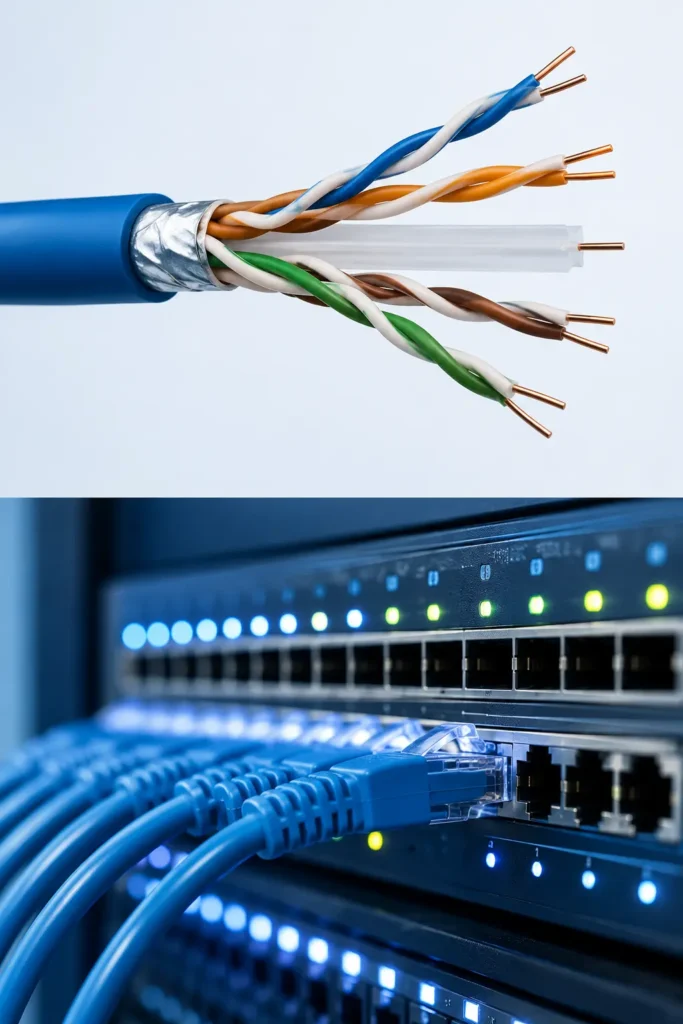
CRC stands for Cyclic Redundancy Check. It is an error-detection algorithm used in digital networks and data storage to detect accidental changes to raw data during transmission or storage. CRC has been part of networking standards since the early days of Ethernet, and it remains a cornerstone of data integrity verification.
Why CRC Exists: The Core Problem
When data travels across a network, it passes through cables, connectors, switches, and sometimes hundreds of miles of fiber. At every step, there’s a risk of corruption — electrical noise, physical damage, hardware failure, or interference can flip individual bits from a 1 to a 0 or vice versa. Once a single bit flips in a data frame, the information is no longer trustworthy.
Without a way to detect this corruption, your application might receive garbage data — an image that appears broken, a file that won’t open, or worse, financial data that’s slightly wrong. CRC exists to catch these errors before they cause real damage.
How CRC Works: A Simple Analogy
Imagine you’re shipping a box of 100 items from a warehouse to a customer. Before the box leaves, a warehouse worker counts the items and writes “100 items” on a slip of paper, seals it, and places it inside the box. When the box arrives, the customer opens it, counts the items, and checks the slip. If the count doesn’t match, they know something went wrong during shipping — even if they can’t tell exactly which item is missing.
CRC works the same way, but with math instead of counting. Here’s what happens:
- The sender generates a CRC value — a small fixed-length number (called a checksum) calculated from the data in the frame using a polynomial division algorithm.
- The CRC value is appended to the end of the data frame before it’s sent.
- The receiver recalculates the CRC using the same algorithm on the received data.
- The two values are compared. If they match, the data arrived intact. If they don’t match, the receiver knows the data was corrupted in transit.
This is an elegant, mathematically robust method. CRC doesn’t tell you what changed — only that something changed. That’s why it’s classified as an error detection mechanism, not an error correction mechanism. Think of CRC as a burglar alarm: it tells you something went wrong, but it doesn’t automatically fix the problem.
Error Detection vs. Error Correction
It’s important to distinguish between the two:
- Error detection (CRC): Identifies that a packet is corrupt. The packet is discarded, and the higher-level protocol (like TCP) requests retransmission.
- Error correction (FEC — Forward Error Correction): Can actually reconstruct corrupted data without retransmission. Used in some wireless and optical systems.
CRC operates at Layer 2 (the Data Link Layer) of the OSI model and is part of the frame check sequence (FCS) field at the end of every Ethernet frame. According to the IEEE 802.3 Ethernet standard, every transmitted frame carries a 32-bit CRC value (CRC-32) to protect its integrity.
2. What Is a CRC Error in Networking?
The Core Definition
A CRC error in networking occurs when the CRC value calculated by the receiving device does not match the CRC value that was originally appended to a frame by the sending device. In plain terms: the data arrived damaged.
When this happens, the receiving device — whether it’s a switch, router, or network interface card — knows the frame is corrupted and discards it entirely. It does not pass the bad data up the network stack. Instead, it increments the CRC error counter on the interface, and the higher-level protocol (TCP/IP) must request a retransmission.
What Happens During Data Transmission
Here’s the lifecycle of a typical Ethernet frame in more detail:
- A source host (say, a Windows server) prepares a data frame.
- The network interface card calculates a CRC value for the frame’s payload.
- The CRC value is embedded in the Frame Check Sequence (FCS) — the last 4 bytes of the Ethernet frame.
- The frame travels through cables and switches toward its destination.
- The destination device receives the frame and recalculates its own CRC.
- If the recalculated CRC matches the FCS, the frame is accepted and processed.
- If the CRC doesn’t match, the frame is dropped and a CRC error is recorded.
This is a normal safety mechanism. The problem isn’t the CRC check itself — it’s when this check fails repeatedly, indicating persistent data corruption in your infrastructure.
Network Impact
A single CRC error here or there, especially on a busy network, isn’t alarming. But persistent or rapidly increasing CRC errors have real consequences:
- Packet loss: Corrupted frames are discarded. Applications waiting for that data must retransmit.
- Increased latency: Retransmissions take time. On a congested link with many CRC errors, latency spikes noticeably.
- Throughput degradation: TCP’s congestion control algorithm interprets packet loss as a signal to slow down, reducing throughput — sometimes dramatically.
- Application issues: VoIP calls become choppy, video streams buffer, and file transfers slow or fail.
- CPU overhead: Error detection and retransmission processing consume CPU cycles on both the host and the switch.
As noted by Cisco’s networking documentation, CRC errors typically indicate noise, signal degradation, or transmission problems on the data link — almost always pointing to a physical layer issue.
3. What Is a CRC Error Example?
Real-world CRC error scenarios help make the concept concrete. Here are four examples drawn from common production networking situations.
Example 1: The Kinked Ethernet Cable
Scenario: A network technician notices that one floor of an office building has been experiencing slow file transfers and periodic application timeouts for several days. Users on that floor share a 1Gbps uplink to the distribution switch.
Investigation: The administrator runs show interfaces GigabitEthernet0/1 on the access switch and sees the CRC counter climbing — several hundred new errors in the last five minutes.
Root Cause: A cable running through a tight conduit had been pinched and kinked during a renovation project the week before. The physical damage to the cable caused signal degradation, resulting in bit errors and CRC failures on every frame that traveled through that damaged section.
Resolution: Replacing the cable immediately eliminated the CRC errors, and network performance returned to normal.
Example 2: The Degraded Fiber Link
Scenario: A data center technician monitors a 10G fiber link between two core switches. Over several weeks, CRC errors on the link increase from near-zero to several thousand per hour.
Investigation: Using an optical power meter, the technician measures the receive power on the fiber link and finds it’s fallen below the minimum threshold for the SFP transceiver.
Root Cause: Dust contamination on the fiber connectors was attenuating the optical signal. The weakened signal caused the SFP to misread bits, generating a stream of CRC errors. The problem was gradual — fiber connector contamination typically worsens over time as more dust accumulates.
Resolution: Cleaning the fiber connectors with a proper fiber optic cleaning kit restored the optical power level, and CRC errors dropped to zero.
Example 3: The Duplex Mismatch
Scenario: A network engineer connects a new workstation to an office switch. The switch port is configured for full-duplex, but the workstation’s NIC driver has a bug that causes it to auto-negotiate to half-duplex.
Investigation: Checking the switch’s interface statistics reveals both CRC errors and frame errors climbing on that specific port.
Root Cause: A duplex mismatch causes one side to send while the other is still transmitting, resulting in collisions. These collisions corrupt frames, which generate CRC errors when the mangled frame reaches the receiver.
Resolution: Manually setting the duplex to full on both the switch port and the NIC resolved the mismatch and eliminated all errors.
Example 4: The Failing Network Interface Card
Scenario: A production server starts generating thousands of CRC errors per hour across all of its connections, regardless of which switch port or cable it’s connected to.
Investigation: The team cables the server to three different switch ports and uses three different patch cables — the CRC errors follow the server every time. The fault is clearly in the server itself.
Root Cause: The server’s NIC has a hardware failure. Its internal circuitry is corrupting frames before they even leave the server, causing the receiving switch to detect CRC errors on every packet.
Resolution: Replacing the NIC resolved all CRC errors immediately.
These examples illustrate a key troubleshooting principle: the CRC counter tells you there’s a problem, but diagnosis requires you to find the source. The error could be in the cable, the connector, the switch port, or the endpoint hardware.
4. What Causes a CRC Error?
CRC errors in networking almost always originate at the physical layer (Layer 1) or occasionally from Layer 2 configuration mismatches. Here is a comprehensive breakdown of the most common causes.
Cause 1: Damaged Ethernet Cables
Physical damage to copper Ethernet cables is the leading cause of CRC errors in office and enterprise environments. Common damage types include:
- Kinking or crushing — cables bent sharply or pinched under furniture or through tight conduit
- Cuts or abrasions — the insulation is breached, exposing conductors to interference or shorts
- Stretch damage — cables pulled too tightly over long runs
- UV degradation — outdoor or in-ceiling cables not rated for UV exposure
Even cables that look fine externally can have internal wire breaks or damaged shielding that cause intermittent signal problems. A cable tester or fluke meter can confirm the physical condition of copper runs.
Cause 2: Poor Cable Quality or Wrong Category
Using low-quality or counterfeit cables is a surprisingly common cause of CRC errors — particularly in environments that source cables from unknown suppliers. Category mismatches matter too. Using Cat5 cables in a Gigabit Ethernet environment, or unshielded cables in an EMI-heavy environment, can push signal error rates above the threshold where CRC failures begin occurring.
According to TIA/EIA cabling standards, properly certified cabling should meet defined electrical specifications for attenuation, return loss, and crosstalk. Cables that fail these specs will generate errors under load.
Cause 3: Duplex Mismatches
As illustrated in Example 3 above, a duplex mismatch between two connected devices causes late collisions on the half-duplex side, which corrupts frames and generates CRC errors on the full-duplex side. This is a configuration-level issue that can exist even with perfectly healthy hardware.
The most common duplex mismatch scenario: a switch port is manually configured to full-duplex, but the connected device auto-negotiates to half-duplex (or vice versa).
Cause 4: Faulty Switch Ports
Switch ports can develop hardware faults over time. Internal ASIC issues, power problems, or physical connector damage inside the switch can cause errors on a specific port — even when the cables and endpoints are healthy. If CRC errors persist after replacing cables and testing with different devices, the switch port itself may be failing. Moving the connection to a different port is a quick diagnostic step.
Cause 5: Electromagnetic Interference (EMI)
Ethernet cables are vulnerable to electromagnetic interference from nearby electrical sources, including:
- Fluorescent lighting ballasts
- Electric motors (elevators, HVAC systems, manufacturing equipment)
- Power cables running parallel to network cables in the same conduit
- Wireless transmitters close to unshielded cable runs
EMI induces noise currents in cable conductors, which flip bits in the data signal and produce CRC errors. Shielded twisted pair (STP) cable and proper grounding help mitigate this, as does routing network cabling away from power infrastructure.
Cause 6: Network Interface Card (NIC) Failures
A failing NIC can corrupt frames before they leave the host, as seen in Example 4. NIC failures can be sudden or gradual. Common symptoms of a failing NIC include CRC errors that follow the device regardless of which port or cable it uses.
Driver bugs can also cause transient CRC-like symptoms by generating malformed frames. Keeping NIC firmware and drivers up to date is a simple preventive measure. Tools like Intel’s NIC diagnostic utility can help identify hardware-level NIC faults.
Cause 7: Fiber Optic Issues
Fiber optic links introduce a different set of potential CRC failure causes:
- Dirty or contaminated connectors — the most common cause; even microscopic dust particles on an optical connector can cause signal loss sufficient to generate bit errors
- Insufficient receive power — if the optical signal level drops below the transceiver’s sensitivity threshold, bit errors and CRC failures result
- Faulty or incompatible SFPs/SFP+ — a transceiver operating outside its specifications will produce errors
- Physical fiber damage — a bent or broken fiber strand, or a macro-bend in cable routing, causes signal loss
- Fiber connector polish type mismatches — mixing APC and UPC connectors causes severe signal degradation
Industry resources like the Fiber Optic Association provide detailed guidance on proper fiber installation and troubleshooting practices.
Cause 8: Connector Problems
Poor-quality RJ45 crimps, loose connectors, corroded contacts, or improperly terminated keystone jacks can all introduce resistance or intermittent continuity breaks. These cause signal irregularities that produce CRC errors — often intermittently, making them frustrating to diagnose. Re-terminating connectors is often a quick and effective fix.
Cause 9: Hardware Aging
Switches, routers, and NICs have operational lifespans. As hardware ages, electrical components degrade — capacitors dry out, solder joints develop micro-cracks, and internal circuitry becomes less reliable. Aging hardware often produces CRC errors at an increasing rate before failing completely. Network equipment running beyond manufacturer end-of-life should be considered a CRC error risk factor.
Cause 10: Environmental Factors
Excessive heat, humidity, vibration, and corrosion all accelerate hardware degradation and can produce CRC errors. Data center environments that exceed recommended temperature ranges can cause transceiver components to behave erratically. In industrial environments, vibration can gradually loosen connectors. Proper environmental controls — temperature monitoring, humidity management, and equipment appropriate for the deployment environment — are essential preventive measures.
5. How to Check CRC Errors
Knowing how to check CRC errors is essential for diagnosing network problems quickly. Here’s a practical guide for the most common platforms.
On Cisco Devices
The primary command for checking CRC errors on Cisco IOS devices is show interfaces. Run it for a specific interface to see detailed error counters:
Router# show interfaces GigabitEthernet0/1
GigabitEthernet0/1 is up, line protocol is up
Hardware is CN Gigabit Ethernet, address is 00c8.8b61.5371
…
0 runts, 0 giants, 0 throttles
1435 input errors, 1433 CRC, 2 frame, 0 overrun, 0 ignored
0 input packets with dribble condition detected
5928 output errors, 0 collisions, 3 interface resets
The key line is the one showing input errors and CRC. In this example, 1,433 CRC errors have been recorded. That’s significant and warrants investigation.
Useful Cisco CRC diagnostic commands:
| Command | Purpose |
| show interfaces [interface] | Shows all error counters including CRC |
| show interfaces [interface] counters errors | Shows error counters in tabular format |
| show controllers [interface] | Shows hardware-level statistics |
| clear counters [interface] | Resets counters to monitor new errors |
| show interface counters errors | Summary of errors across all interfaces |
For Cisco Nexus platforms, CRC troubleshooting involves additional ASIC-level commands. Cisco has published a dedicated Nexus 9000 CRC troubleshooting script that automates identification of error sources across complex switch fabrics.
Important: Use clear counters to reset the CRC counter after noting the baseline, then monitor whether new errors accumulate. A counter that doesn’t change after clearing may represent old, historical errors from a problem that has already been resolved.
On Linux Systems
Linux provides several commands to check network interface error statistics, including CRC errors:
Using ifconfig:
ifconfig eth0
Look for the “RX errors” line in the output — it includes frame errors and overruns, which can be associated with CRC-level corruption.
Using ip -s link:
ip -s link show eth0
This provides receive and transmit statistics including error counts. The output looks like:
2: eth0: <BROADCAST,MULTICAST,UP,LOWER_UP>
link/ether 00:11:22:33:44:55
RX: bytes packets errors dropped missed mcast
123456789 987654 47 0 0 123
TX: bytes packets errors dropped carrier collsns
98765432 876543 0 0 0 0
The errors column under RX is your CRC/frame error indicator.
Using ethtool:
ethtool -S eth0 | grep -i crc
ethtool provides driver-specific statistics that often include explicit CRC error counts. This is the most granular option on Linux.
On Windows Systems
Windows doesn’t expose CRC counters as explicitly as Linux or Cisco devices, but there are several methods:
Network Adapter Statistics via Device Manager:
- Open Device Manager → Network Adapters
- Right-click the adapter → Properties → Details → check the statistics tab (if available for your driver)
Performance Monitor (perfmon):
- Open Performance Monitor (perfmon.msc)
- Add counters under “Network Interface”
- Look for “Packets Received Errors”
PowerShell:
Get-NetAdapterStatistics | Select-Object Name, ReceivedPacketErrors, ReceivedFrameErrors
This cmdlet provides error statistics directly from the adapter driver.
WMI Query:
Get-WmiObject Win32_PerfRawData_Tcpip_NetworkInterface | Select-Object Name, PacketsReceivedErrors
On Managed Switches (Vendor-Neutral)
Most enterprise managed switches — from brands like HP/Aruba, Juniper, Dell, and Extreme Networks — expose CRC counters through their CLI or web management interface:
- HP/Aruba ProCurve: show interfaces brief or show interfaces ethernet [port] detail
- Juniper: show interfaces [interface] detail — look for “Input errors” and “CRC/Align errors”
- Dell PowerConnect/OS10: show interface [interface]
Network Monitoring Tools
For production environments, manual CLI checks aren’t scalable. Purpose-built monitoring platforms can alert you automatically when CRC error rates exceed thresholds:
- PRTG Network Monitor — SNMP-based interface monitoring with CRC error alerting
- SolarWinds NPM — Comprehensive interface error tracking and trending
- Nagios/Zabbix — Open-source options with SNMP template support for interface errors
- Prometheus + Grafana — Used in DevOps environments with SNMP exporters
Most monitoring platforms query interface error counters via SNMP (Simple Network Management Protocol), specifically the MIB-II ifInErrors OID (1.3.6.1.2.1.2.2.1.14), which tracks received frames with errors including CRC failures.
6. Can CRC Errors Be Fixed?
Yes — the vast majority of CRC errors can be fixed. But fixing them requires identifying the actual root cause, not just acknowledging the symptom. This is where many troubleshooting efforts go wrong.
Common Misconceptions About Fixing CRC Errors
Misconception #1: Clearing the counter fixes the problem. Running clear counters on a Cisco switch resets the CRC counter to zero. This is useful for monitoring whether new errors occur, but it does absolutely nothing to address the physical condition that’s generating those errors. If the underlying problem persists, the counter will start climbing again immediately.
Misconception #2: Rebooting the switch or device will fix it. A reboot might temporarily halt error accumulation if the cause is a software state or driver issue. But physical damage, EMI, or hardware failure will cause CRC errors to return immediately after the reboot.
Misconception #3: CRC errors mean the network is broken. Low, stable CRC counts (a handful per day on a busy interface) don’t necessarily indicate a crisis. Networks can tolerate some level of frame retransmission. The concern is a counter that is actively increasing at a significant rate.
Temporary vs. Persistent CRC Errors
Some CRC errors are transient — caused by a brief electrical event, a momentary connector issue, or a one-time EMI spike. If CRC counters clear to zero after a clear and don’t increase, the issue may be self-resolved.
Persistent, continuously increasing CRC errors indicate an ongoing problem that won’t go away without intervention. These require systematic physical troubleshooting.
The Right Mindset: Treat the Cause, Not the Symptom
The correct approach to CRC error remediation is:
- Measure — Establish current error rates
- Isolate — Narrow down the fault to a cable, port, device, or segment
- Replace or repair — Fix the identified hardware
- Verify — Confirm error rates return to baseline after the fix
Without this systematic approach, you risk spending hours on the wrong component while the actual fault continues causing problems.
7. CRC Error Fix: Step-by-Step Troubleshooting Process
This section provides a practical, engineer-tested workflow for diagnosing and resolving CRC errors.
Step 1: Identify the Affected Interface
Start by identifying exactly which interface is generating CRC errors. On a Cisco switch, this is as simple as running a sweep:
Switch# show interfaces | include CRC|GigabitEthernet|FastEthernet
Or use a one-liner to find only ports with non-zero CRC counts:
Switch# show interface counters errors | exclude ^0
Write down the interface name, current CRC count, and timestamp. This is your baseline.
Clear the counters on the affected interface:
Switch# clear counters GigabitEthernet0/5
Wait 5–10 minutes and recheck. If the counter climbs immediately, the problem is active and ongoing.
Step 2: Inspect Physical Cabling
With the affected interface identified, physically trace the cable path from the switch port to the connected endpoint:
- Look for visible damage: kinks, sharp bends, pinch points, or cuts
- Check connectors: ensure RJ45 plugs are fully seated and not cracked
- Measure cable length: Ethernet has a 100-meter limit for copper; exceeding this causes signal degradation
- Check cable category: is the cable rated for the speed being used?
- Trace the cable path: is it running through conduits with power cables or near EMI sources?
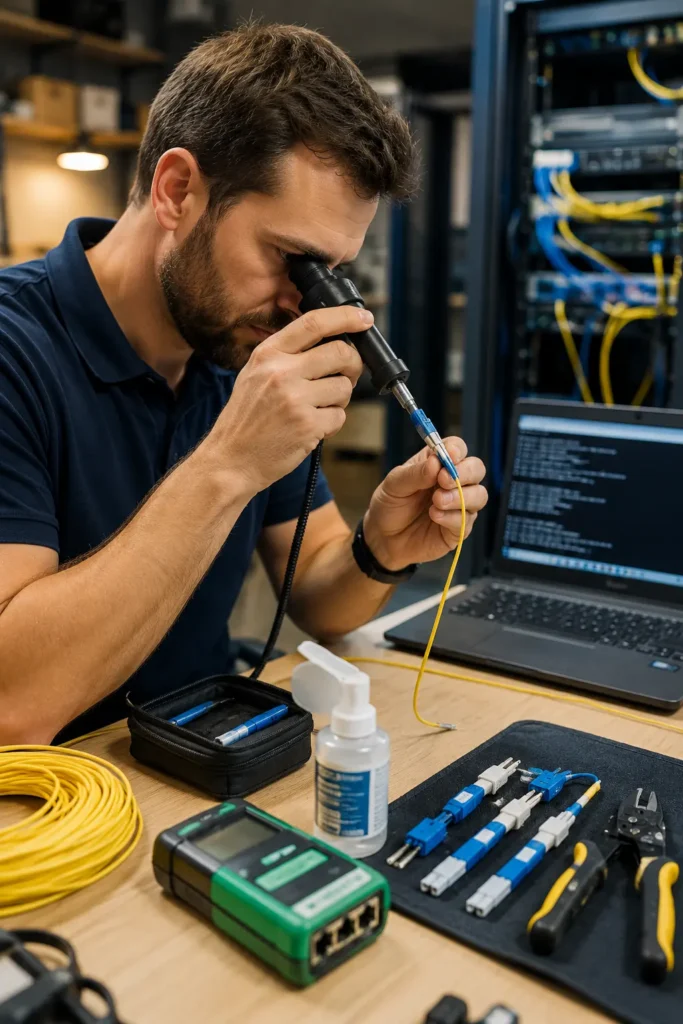
For fiber links, inspect connector end faces with a fiber inspection scope. Dirty or contaminated connectors are visible under magnification and must be cleaned with proper fiber cleaning tools before re-inspection.
Step 3: Replace Suspect Cables and Connectors
Don’t spend too long staring at a cable — if you suspect it, swap it out. Cables are inexpensive relative to the time spent troubleshooting. Try a known-good, tested cable of appropriate category between the same devices.
After the swap, monitor the CRC counter for 10–15 minutes under normal traffic load. If errors stop accumulating, the cable was the culprit.
For fiber, if cleaning the connectors doesn’t solve the problem, try a different fiber patch cord. Fiber cables develop internal micro-cracks that aren’t visible externally.
Step 4: Verify Speed and Duplex Settings
Check the speed and duplex configuration on both ends of the connection. On Cisco:
Switch# show interfaces GigabitEthernet0/5 | include duplex|speed
Full-duplex, 100Mb/s, media type is 10/100/1000BaseTX
If speed or duplex is negotiated rather than manually set, verify both sides are matching. The safest configuration for GigE Ethernet is auto/auto (letting both sides negotiate), but if one side is forced to a specific setting and the other is set to auto, mismatches can occur.
To manually configure on Cisco IOS:
Switch(config)# interface GigabitEthernet0/5
Switch(config-if)# speed 1000
Switch(config-if)# duplex full
Step 5: Check Switch Port Health
If cable replacement doesn’t resolve the issue, suspect the switch port itself. Test by moving the connection to a different, known-good port on the same switch. If the CRC errors cease on the new port but return when using the original port with a new cable, the switch port is failing.
Check the switch port for:
- Physical damage to the port connector
- Bent or pushed-in pins in the RJ45 receptacle
- Error-disabled status (show interfaces will show “err-disabled” if the port was auto-disabled)
- Excessive heat around the switch (check environmental sensors if available)
Step 6: Test Alternate Hardware at the Endpoint
If CRC errors follow the same device regardless of port or cable, the problem is in the endpoint hardware. This could be:
- A failing NIC
- A buggy or outdated NIC driver
- A bad HBA (for fiber-connected servers)
On the suspected device, try:
- Updating the NIC driver and firmware
- Replacing the NIC with a known-good spare
- Testing the device on an isolated segment to confirm it’s the source
Step 7: Monitor Error Counters Continuously
Rather than checking manually every few minutes, set up automated monitoring. Even a simple SNMP threshold alert for ifInErrors increment rate above a defined threshold will alert you within minutes of CRC errors starting to increase.
If you’re managing infrastructure that’s important for your AI workflows or automated processes, integrating network monitoring with your toolstack is essential — you can explore how AI-powered tools are being applied to network operations management at AI Tool Mapper.
Step 8: Verify Resolution
After implementing a fix, confirm it worked:
- Clear counters (clear counters [interface] on Cisco)
- Wait at least 15–30 minutes under normal production traffic
- Recheck the CRC counter — it should remain at zero or very near zero
- Continue monitoring for 24–48 hours to rule out intermittent issues
Document what you found and what you fixed. This helps enormously if similar symptoms appear on other interfaces in the future.
8. How to Resolve CRC Errors Permanently
Troubleshooting individual CRC errors is reactive. Truly resolving CRC errors in the long term requires building better infrastructure practices and a proactive monitoring posture.
Invest in High-Quality, Certified Cabling
The single most effective long-term strategy is using certified, properly tested cabling infrastructure. This means:
- Use certified patch cables from reputable vendors (Panduit, Belden, CommScope, etc.) rather than generic or unbranded cables
- For structured cabling, use TIA-568 compliant installation with certified runs
- Verify with a cable certifier (Fluke DSX-2 or equivalent) that installed runs meet spec for the target speed — especially for 10GBase-T or 25G deployments
- Use plenum-rated cable in air-handling spaces; use outdoor-rated cable for outdoor runs
Monitor Interfaces Regularly and Proactively
CRC errors rarely appear suddenly at catastrophic levels. They usually start small and grow. Catching a rising CRC trend early — before it causes user-visible problems — is much easier than troubleshooting a crisis.
Set SNMP monitoring thresholds for interface error counters on all critical links. Many network monitoring tools allow you to alert on error rate (errors per minute) rather than cumulative count, which is more meaningful for trending.
Replace Aging Hardware on a Schedule
Network hardware doesn’t last forever. For environments where uptime is critical, establish a hardware lifecycle policy:
- Access switches: 5–7 year replacement cycle
- Core/distribution switches: 7–10 years, with extended support contracts
- Fiber patch cords: Inspect and replace annually in high-traffic cable trays
- SFP/SFP+ transceivers: Monitor optical power levels and replace when degraded
Hardware approaching end-of-life should be prioritized for replacement before it fails in production — rather than after.
Manage Cable Routing and Physical Infrastructure
How cables are installed matters enormously for long-term reliability:
- Avoid routing network cables in the same conduit as power cables — maintain separation per TIA and NEC guidelines
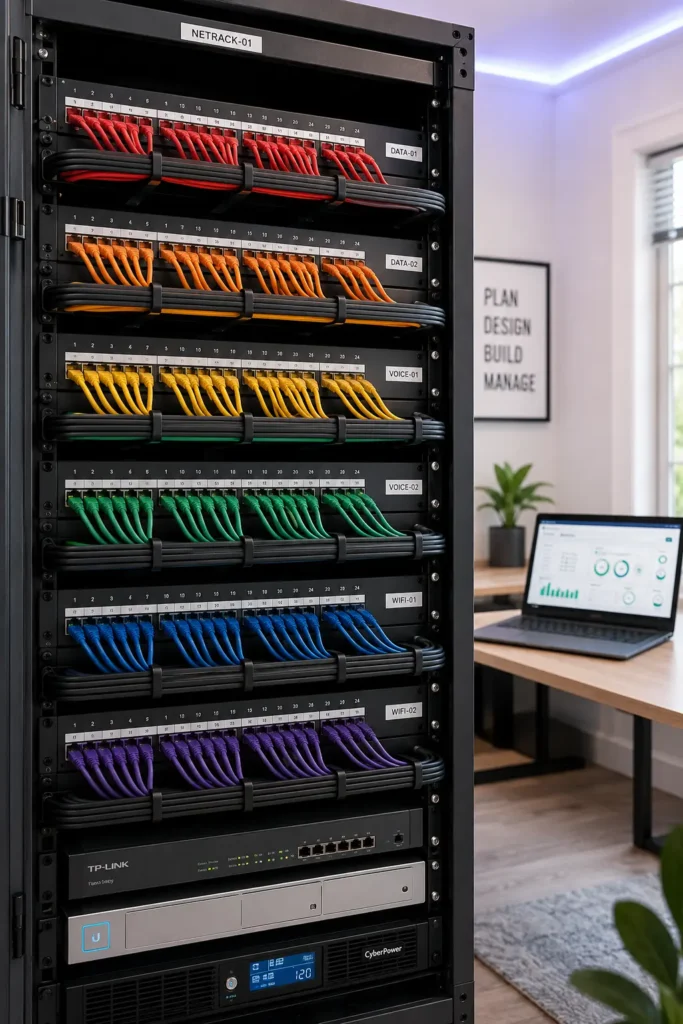
- Use proper cable management (trays, D-rings, horizontal managers) to prevent weight stress and bending
- Label everything — unlabeled cables get moved, pulled, and damaged
- Don’t exceed bend radius limits — especially for fiber and Cat6a cables
Maintain Fiber Infrastructure
Fiber links are generally more reliable than copper over long runs, but they require specific maintenance:
- Clean fiber connectors any time they are disconnected and reconnected — use qualified fiber cleaning tools (IEC 61300-3-35 compliant)
- Inspect connector end faces with a fiber scope before connecting
- Monitor optical power levels on key fiber links via SFP DOM (Digital Optical Monitoring) — most modern SFPs expose receive power via SNMP or CLI
Conduct Regular Network Audits
A periodic network infrastructure audit helps catch problems before they cause outages:
- Review interface error statistics across all switches — identify any ports with gradually rising CRC counts
- Inspect physical cabling in network closets and data center environments annually
- Test all fiber patch cords in critical paths with an insertion loss meter
- Review switch hardware ages and compare against lifecycle policies
- Verify duplex and speed configurations on all interfaces
Organizations that have adopted AI-driven network monitoring platforms are increasingly using anomaly detection to identify unusual error rate patterns before they become problems. To explore the current AI tools being used in IT operations and network management, visit AI Tool Mapper’s blog.
9. CRC Errors vs. Other Network Errors
CRC errors are just one of several error types you’ll see in network interface statistics. Understanding the differences helps you troubleshoot more accurately.
Interface Error Types Explained
| Error Type | What It Means | Primary Cause |
| CRC Errors | Received frames with FCS mismatch | Physical layer damage, EMI, bad NIC, fiber issues |
| Input Errors | Total of all receive-side errors (includes CRC, runts, giants, etc.) | Sum of multiple error types |
| Frame Errors | Frames with incorrect framing or length (alignment errors) | Duplex mismatches, physical layer issues |
| Runts | Frames smaller than 64 bytes | Collision fragments, duplex mismatch, misconfigured NIC |
| Giants | Frames larger than maximum size | MTU misconfiguration, jumbo frames not enabled |
| Packet Drops | Packets discarded due to buffer overflow | Bandwidth congestion, resource exhaustion |
| FCS Errors | Frame Check Sequence failures (similar to CRC) | Physical damage; often counted together with CRC |
| Collisions | Multiple simultaneous transmissions | Half-duplex operation, duplex mismatch |
| Ignored | Packets ignored due to resource exhaustion | Interface overloaded, insufficient buffer memory |
| Overruns | Receive buffer overflows | Traffic bursts exceeding hardware buffer capacity |
How to Tell CRC Errors Apart From Other Issues
CRC errors without runts or frame errors → Likely a physical damage or EMI issue on an otherwise properly configured link. Focus on cables and connectors.
CRC errors with frame errors (alignment errors) → Strong indicator of a duplex mismatch. Check speed and duplex settings on both sides.
CRC errors with runts → Collision-related corruption. Check for duplex mismatch or half-duplex operation.
High input errors but low CRC → Look more carefully at overruns or ignored counts — may be a CPU or buffering issue rather than physical damage.
CRC errors only on specific fiber ports → Focus on SFP transceivers, fiber connector cleanliness, and optical power levels.
Understanding this error taxonomy prevents you from chasing the wrong fix. A rising runt counter with CRC errors almost certainly points to a duplex problem, not a bad cable — so your first action should be checking configuration, not physically replacing cables.
10. Best Practices for Reducing CRC Errors
Use Certified, Tested Cabling
Always insist on tested, certified cabling for permanent infrastructure. Cheap, uncertified patch cables are one of the leading causes of intermittent CRC errors in office environments. The cost difference between quality and generic cables is trivial compared to troubleshooting time.
Standardize Speed and Duplex Configuration
In enterprise environments, establish a documented standard for how switch ports are configured. Many organizations configure access ports with:
- speed auto + duplex auto for workstation ports
- Hard-coded speed and duplex for server uplinks and inter-switch links
Consistency reduces the chance of duplex mismatches.
Maintain Physical Infrastructure
Network closets aren’t “set and forget” spaces. Schedule annual physical inspections of cable management, connector condition, and patch panel quality. Replace frayed patch cords immediately.
Monitor Interface Error Counters Continuously
Don’t wait for users to report slowness. By that point, CRC errors have already been building for hours or days. A properly configured SNMP monitoring platform should alert on rising CRC rates before users are impacted.
Manage Environmental Conditions
Maintain data center and network closet temperatures within manufacturer specifications (typically 18–27°C / 64–80°F). Excessive heat accelerates component degradation. Keep humidity within recommended ranges to prevent condensation and corrosion.
Avoid EMI Sources Near Network Cabling
Consult local electrical and network cabling codes for proper separation distances between power and data cabling. When installing network cabling near industrial equipment, motors, or generators, use shielded cabling (STP) and ensure proper grounding.
Keep Hardware and Firmware Updated
NIC firmware bugs, switch ASIC bugs, and driver issues have all been responsible for CRC-like symptoms that weren’t caused by physical damage. Keep firmware and driver updates applied, particularly for server NICs and core network devices.
Document Your Network Infrastructure
A complete, up-to-date infrastructure diagram and cable documentation dramatically reduces troubleshooting time. When a CRC error appears on port Gi1/0/23, you should be able to immediately identify what device that port connects to, where the cable runs, and when it was last inspected — without crawling through a cable tray for 20 minutes.
11. CRC Troubleshooting Quick-Reference
Cisco Command Reference
| Command | Use |
| show interfaces [int] | Full interface statistics including CRC |
| show interfaces [int] counters errors | Tabular error summary |
| show controllers [int] | Hardware-level diagnostics |
| clear counters [int] | Reset counters for baseline monitoring |
| show interfaces status | Quick overview of all port states |
| show interfaces [int] | include CRC | Filter CRC line only |
CRC Error Causes and Fixes Summary
| Cause | Diagnostic Test | Fix |
| Damaged cable | Swap cable; use cable certifier | Replace cable |
| Duplex mismatch | Check show interfaces duplex line | Match speed/duplex settings |
| Dirty fiber connector | Fiber inspection scope | Clean connectors |
| Faulty switch port | Move to different port | Replace switch or port |
| Failing NIC | Move device to different port; error follows device | Replace NIC |
| EMI interference | Check cable routing near power sources | Reroute cable or use STP |
| Aging hardware | Check hardware age and optical power | Replace hardware |
CRC Error Troubleshooting Decision Tree
- Where is the CRC counter increasing? → Identify the exact interface
- Does the error follow the cable or the port? → Swap cable; if error stops, replace cable
- Does the error follow the device or the port? → Swap port; if error follows device, it’s the endpoint
- Is it a fiber link? → Check optical power levels and clean connectors
- Are there frame errors or runts alongside CRC? → Investigate duplex mismatch
- Is the hardware aged? → Consider proactive replacement
12. Frequently Asked Questions (FAQ)
What is CRC in simple words?
CRC (Cyclic Redundancy Check) is a mathematical method used to detect errors in data. The sender calculates a short number (checksum) from the data and attaches it to the transmission. The receiver recalculates the same checksum from the received data. If the numbers match, the data arrived intact. If they don’t match, something corrupted the data in transit.
What is a CRC error in networking?
A CRC error in networking occurs when the checksum value embedded in a received data frame doesn’t match the checksum recalculated by the receiving device. This means the frame was corrupted during transmission — possibly due to a damaged cable, faulty hardware, or electromagnetic interference. The corrupted frame is discarded, and the CRC error counter on the interface increments.
What is a CRC error example?
A classic example: a technician crimps an RJ45 connector slightly off-spec. The resulting connection works intermittently, but under heavy traffic, the marginal connection generates bit errors. Every corrupted frame generates a CRC error on the connected switch port. Once the connector is re-terminated properly, the errors stop.
What causes a CRC error?
The most common causes are damaged or low-quality Ethernet cables, dirty fiber connectors, duplex mismatches, failing switch ports or NICs, electromagnetic interference from nearby electrical equipment, and aging hardware with degraded components.
Can CRC errors be fixed?
Yes. The majority of CRC errors are caused by physical issues that can be fixed by replacing cables, cleaning fiber connectors, correcting duplex settings, or replacing faulty hardware. The key is identifying the root cause through systematic troubleshooting rather than simply resetting counters.
How do I check CRC errors?
On Cisco devices, run show interfaces [interface] and look at the CRC counter in the input errors line. On Linux, use ip -s link or ethtool -S [interface]. On Windows, use PowerShell with Get-NetAdapterStatistics. On managed switches, access port statistics through the management interface or CLI.
How do I resolve CRC errors?
Follow the step-by-step process: identify the affected interface, inspect and replace suspect cables, verify speed and duplex settings, check the switch port health, test with alternate hardware, and monitor for 24–48 hours after the fix to confirm resolution.
Are CRC errors always caused by bad cables?
No. While bad cables are the most common cause in copper Ethernet environments, CRC errors can also be caused by dirty fiber connectors, failing NICs, faulty switch ports, duplex mismatches, EMI, and aging hardware. Always investigate systematically rather than assuming the cable is always to blame.
Can CRC errors slow down a network?
Yes, significantly. CRC errors cause frame discards, which force TCP to retransmit data. Retransmissions reduce effective throughput, increase latency, and can cause applications to behave erratically. VoIP and real-time applications are especially sensitive to the latency caused by persistent CRC errors.
Should CRC counters ever increase?
Occasional CRC errors on a very busy interface (a handful over hours) may not indicate a serious problem. However, CRC counters that are actively and rapidly increasing — dozens or hundreds per minute — indicate an active physical problem that needs attention. Zero CRC errors is the goal for a healthy network link.
Conclusion: CRC Errors Are a Warning Signal, Not a Sentence
If you’ve reached this point, you now have a thorough understanding of CRC errors in networking — what they are, where they come from, and what to do about them.
The most important thing to remember is this: a CRC error is a symptom, not the disease. The CRC counter on your switch is doing its job correctly — it’s telling you that something in the physical world is corrupting your data. Your job is to find that something and fix it.
The good news is that the vast majority of CRC error causes are fixable. A bad cable, a dirty fiber connector, a misconfigured duplex setting, a failing NIC — all of these have clear, practical solutions. What separates experienced network engineers from frustrated beginners in this context is usually just methodology: systematically isolating the fault rather than randomly replacing components and hoping.
The even better news is that with proper preventive infrastructure practices — certified cabling, regular monitoring, hardware lifecycle management, and environmental controls — most CRC error incidents can be prevented before they occur, or caught early enough that they never impact users.
Network infrastructure that runs quietly and reliably doesn’t happen by accident. It happens because someone built it right, monitors it consistently, and responds quickly when early warning signs appear. CRC error counters are one of your most valuable early warning tools. Use them.
If you’re exploring AI-driven tools to assist with network monitoring, IT automation, or infrastructure management, AI Tool Mapper is a great starting point — a curated platform for discovering tools that can help you work smarter, not harder.
References and Further Reading
- Cisco — CRC Troubleshooting on ATM Interfaces
- Cisco — Troubleshoot Interface CRC Errors on IOS XR Routers
- Cisco — Nexus 9000 CRC Troubleshooting Script
- CBT Nuggets — Interface Errors You Need to Know
- TIA — Cabling Standards Overview
- The Fiber Optic Association — Fiber Troubleshooting Guides
- IEEE 802.3 Ethernet Standard
- Intel NIC Diagnostic Utilities
Published on AI Tool Mapper Blog — Your trusted source for AI tools, technology insights, and IT infrastructure guides.